Help Center
How to Use Leather on UniSat
Apr 24, 2025
This guide is provided for informational purposes only. Always double-check your transactions and understand the risks involved in using the UniSat marketplace.
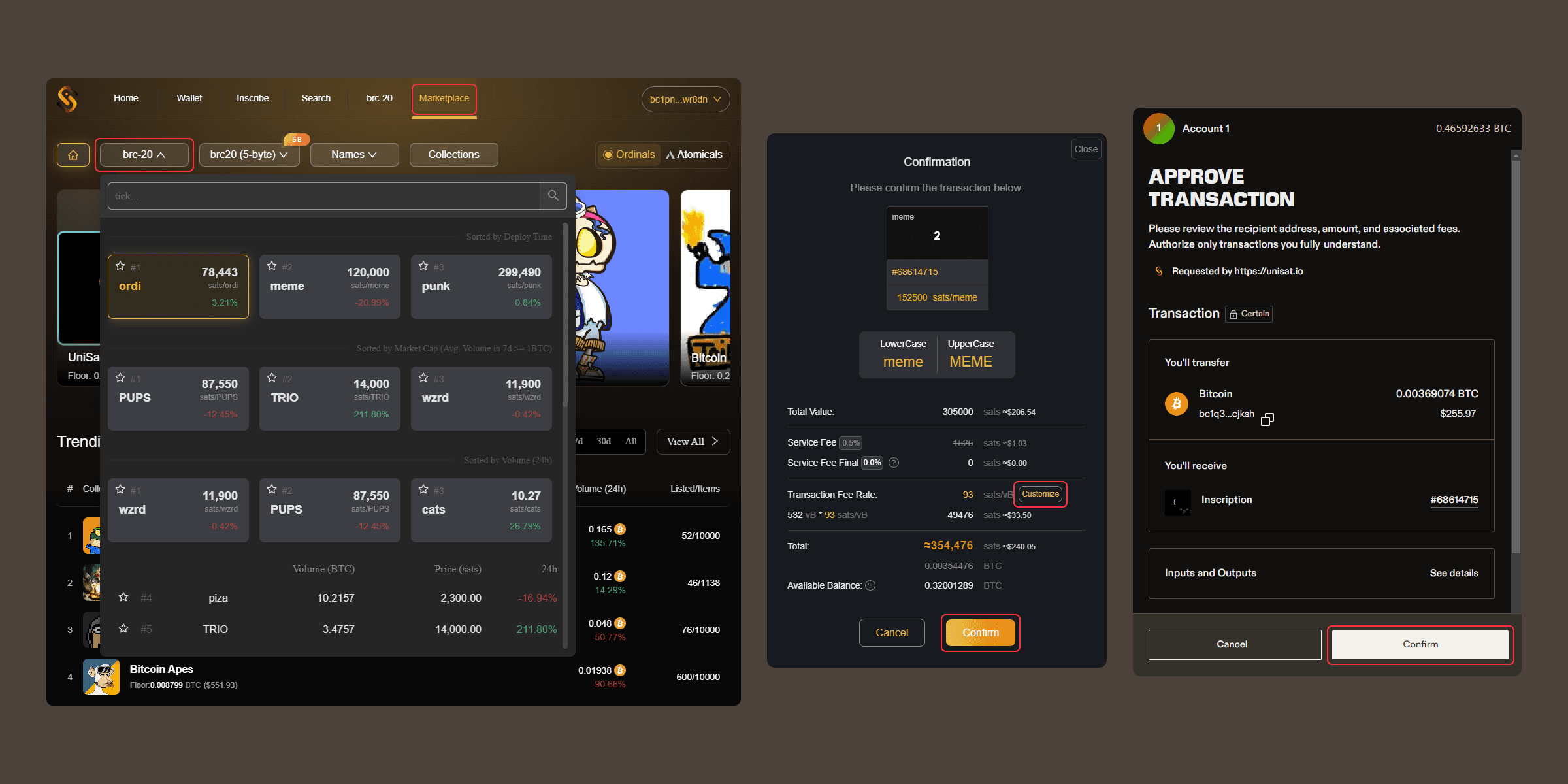
- Head to the “Marketplace” section and click on the “BRC-20” drop-down menu
- Search for a specific BRC-20 token or browse the available token offerings
- Select the BRC-20 transfer inscription that you want to purchase and click “Buy” (the numbers denote the amount of tokens in each inscription)
- Confirm the network fee you want to pay to complete your transaction and continue
- Review the transaction details in the Leather pop-up window and confirm the transaction
How to Sell BRC-20 Tokens on UniSat with Leather
To sell BRC-20 tokens on UniSat with Leather:
- Click on the “My Assets” drop-down located just above BRC-20 token listings to the right and select which BRC-20 token you want to “List”
- Click on the “Inscribe TRANSFER” box
- Make sure that the “Transfer” option has been selected for you and enter the amount of tokens you wish to transfer
- Double check the JSON text that appears detailing your transfer information
- Read through the Risk Warning notice that pops up and click “Understood” if you choose to proceed with your transaction
- Provide the recipient’s address and select the fee option you’d like to proceed with your BRC-20 token deployment
- Check the “Pay with Wallet” box in the Inscribing Order window that appears and click “Pay with Wallet” to proceed
- Double check the payment details in the Leather pop-up window that appears and click “Continue”
- Select the fee option you’d like for your transaction
- Click “Send” to complete the transfer process for your BRC-20 token
Related Guides
- Buy BRC-20 tokens
- Mint BRC-20 tokens on Magic Eden Leather users can connect to the UniSat marketplace, which gives them access to Bitcoin Ordinals collections, BRC-20 tokens, names, and more.
Here are the ways Leather users can interact with UniSat:
How to Connect to UniSat with Leather
To connect to UniSat with your Leather wallet:
-
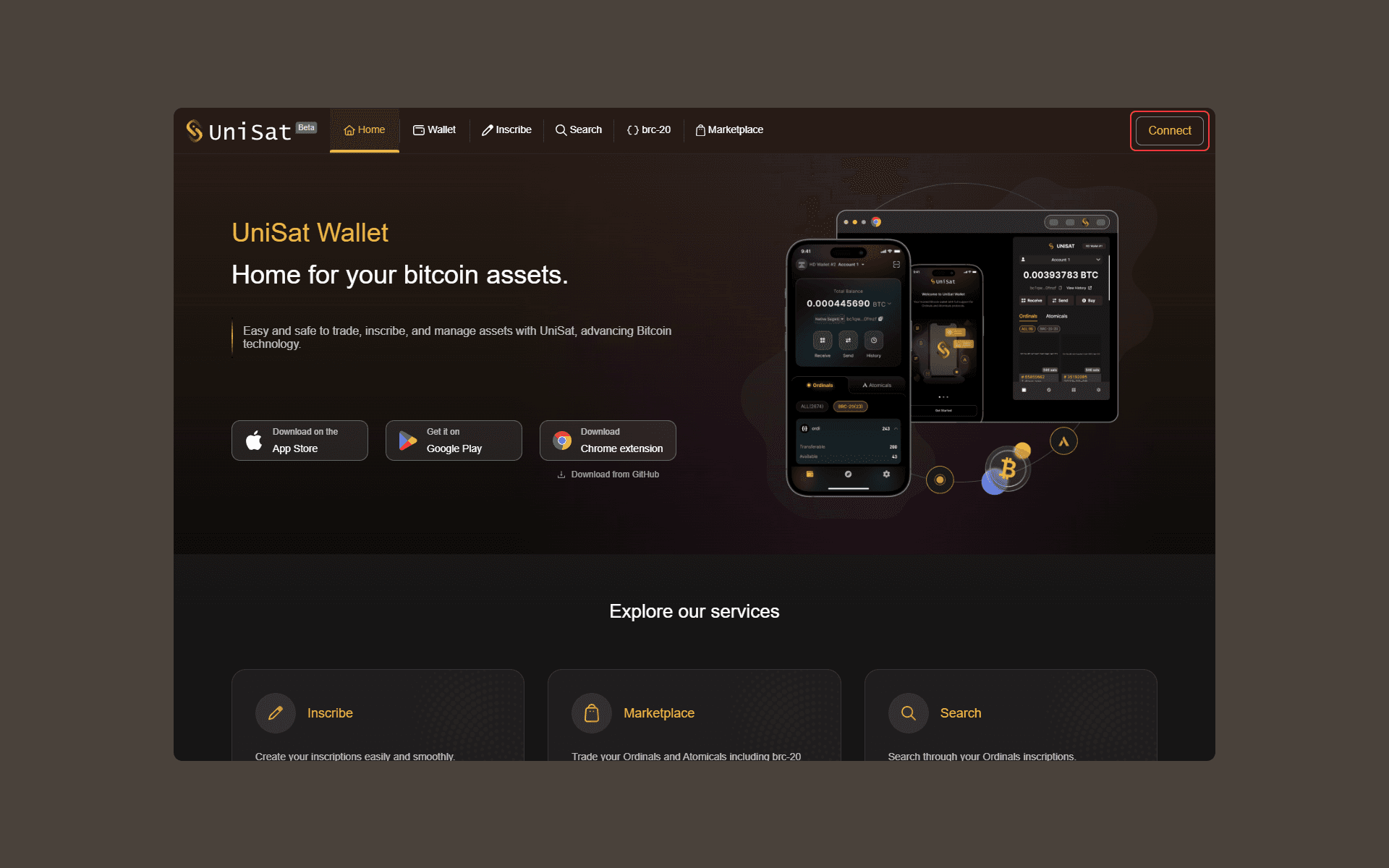
Click “Connect” on the top right corner of the UniSat website
-
Select “Leather Wallet” from the available options

-
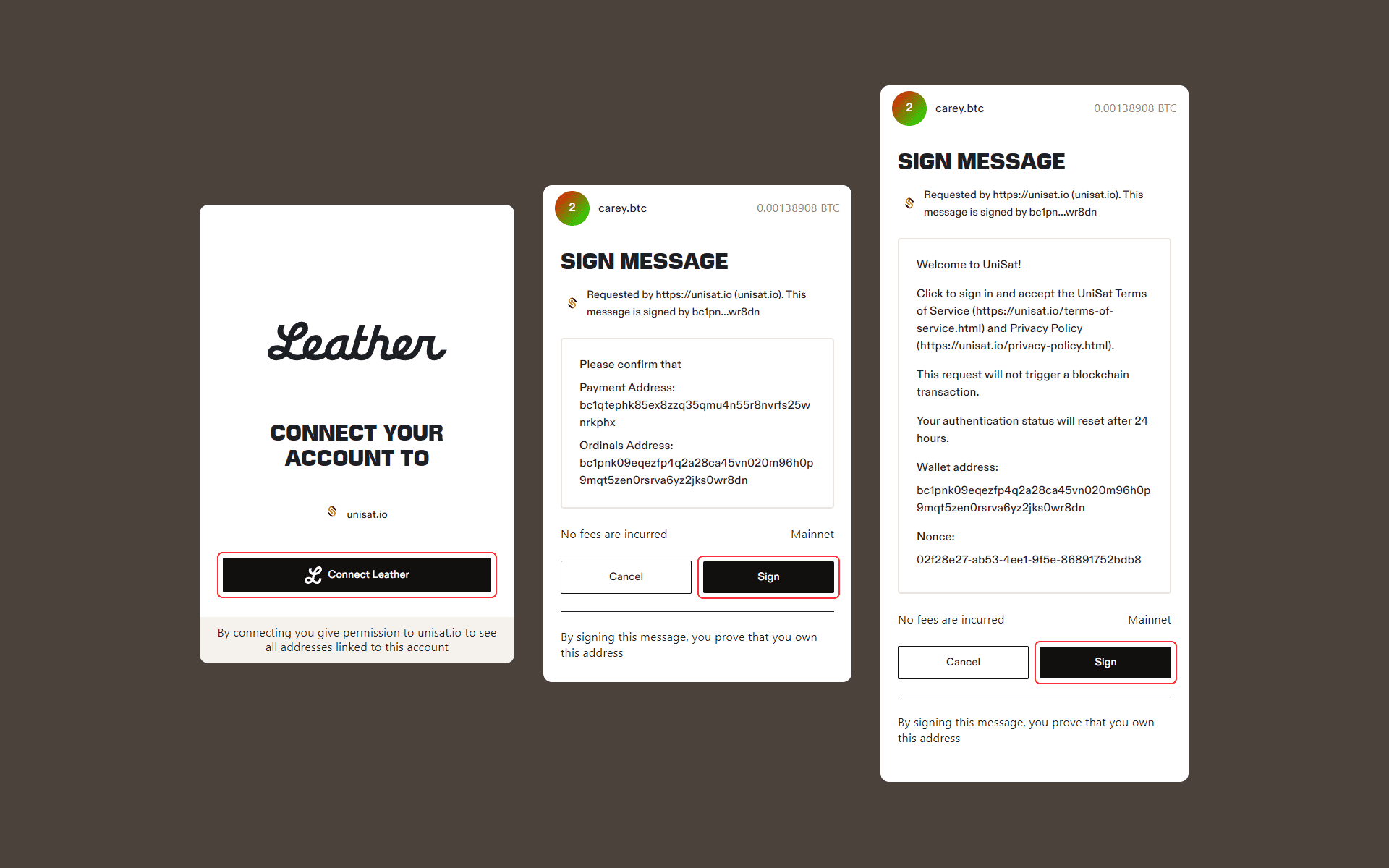
Click “Connect Leather” and then “Sign” when the pop-up window appears
How to Inscribe Ordinals on UniSat with Leather
To mint inscriptions on UniSat:
-
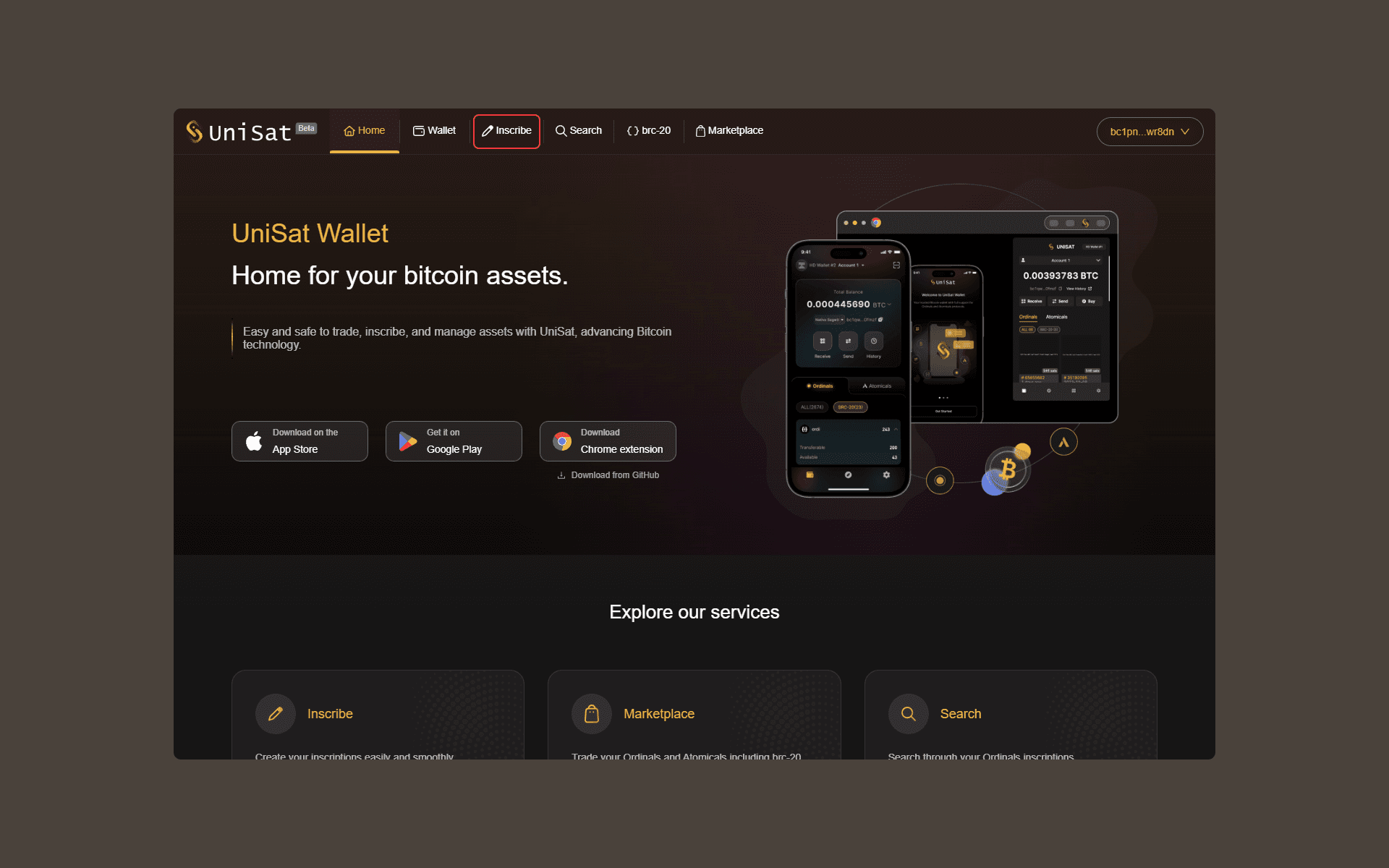
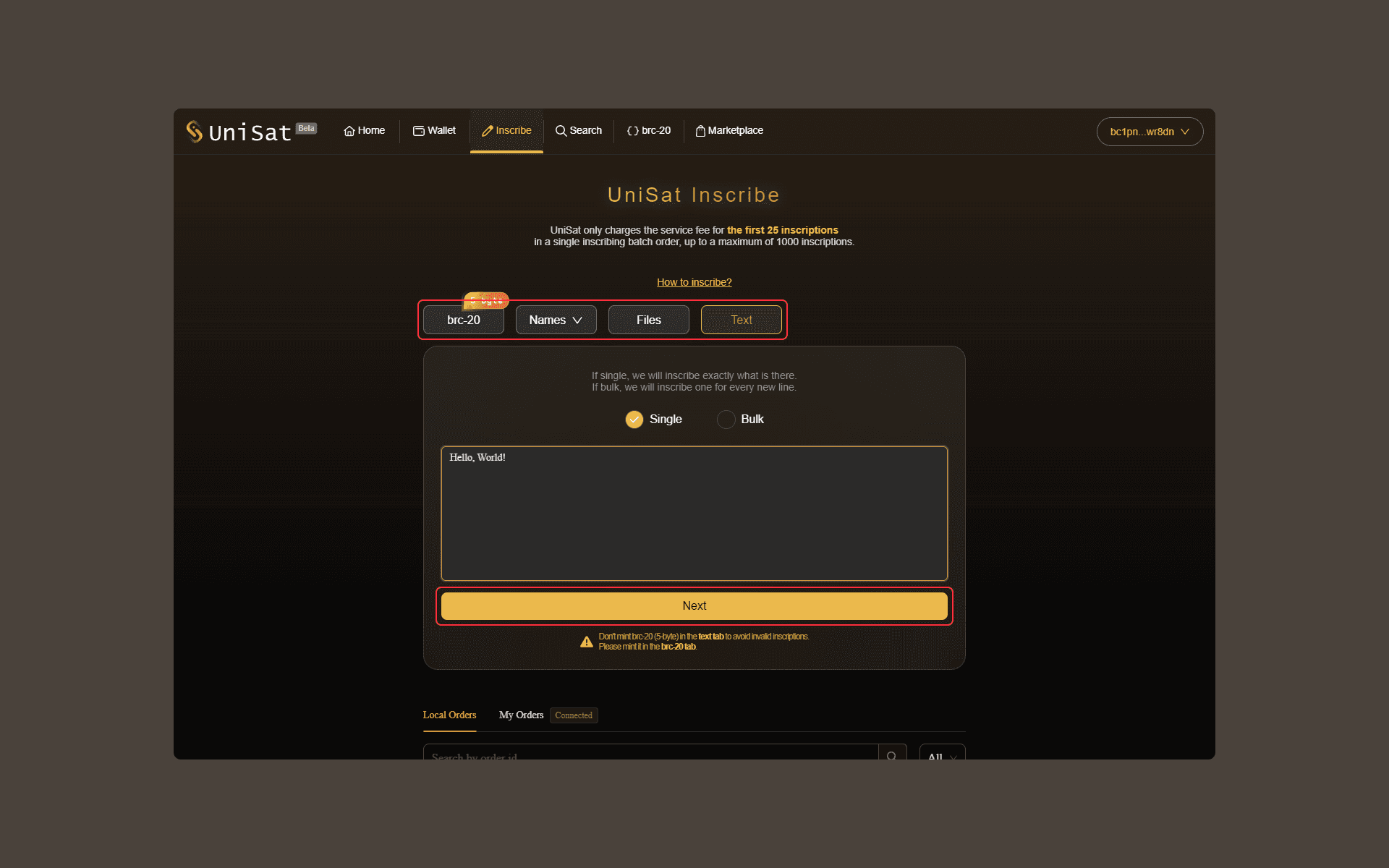
Click the “Inscribe” option in the UniSat site header
-
Select the “Files” or “Text” option depending on the type of data you’re looking to inscribe
-
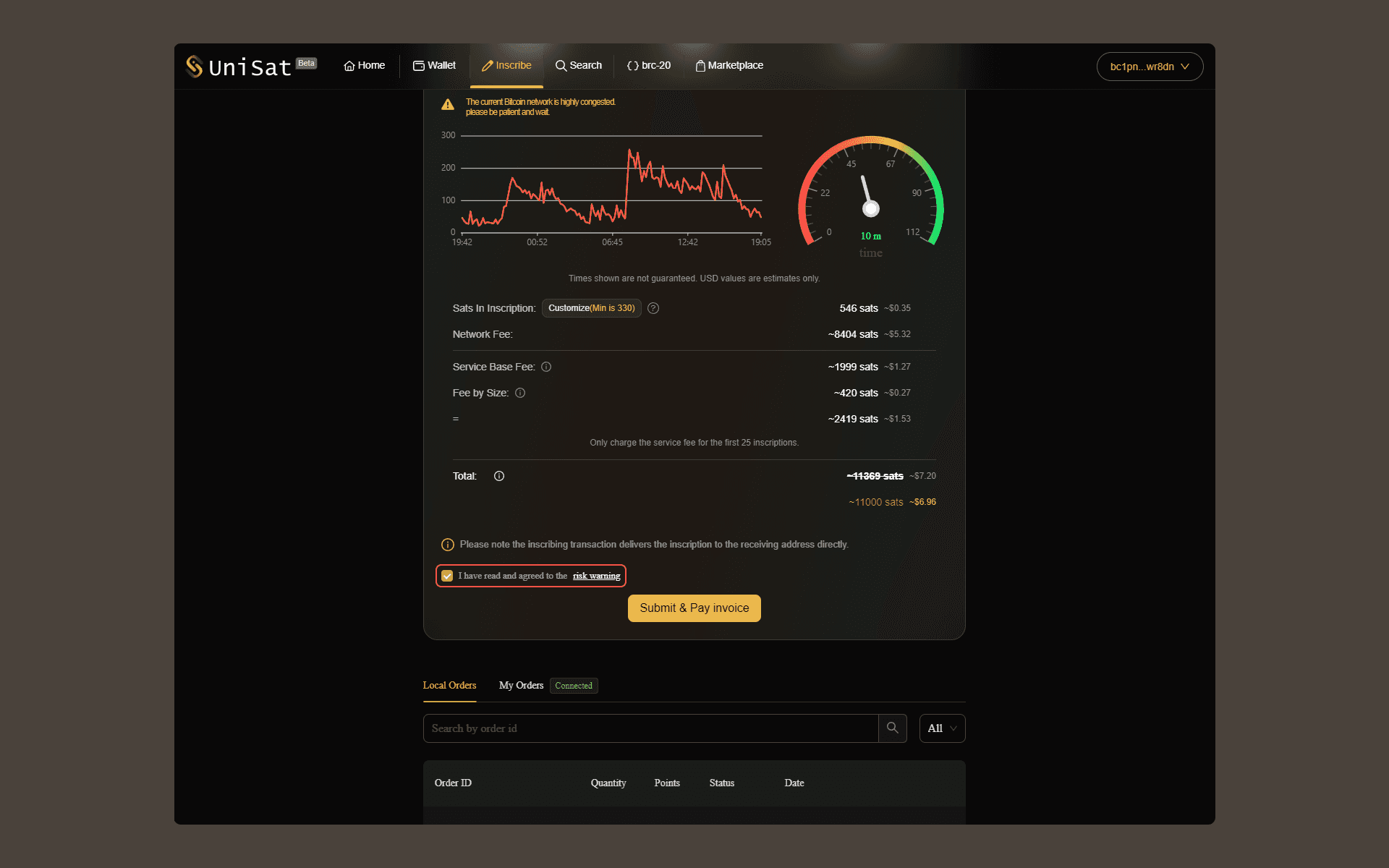
Enter the recipient wallet’s Taproot address and choose the network fee you’d like to use for your transaction

-
Read the “risk warning” and check the box if you agree to the terms
-
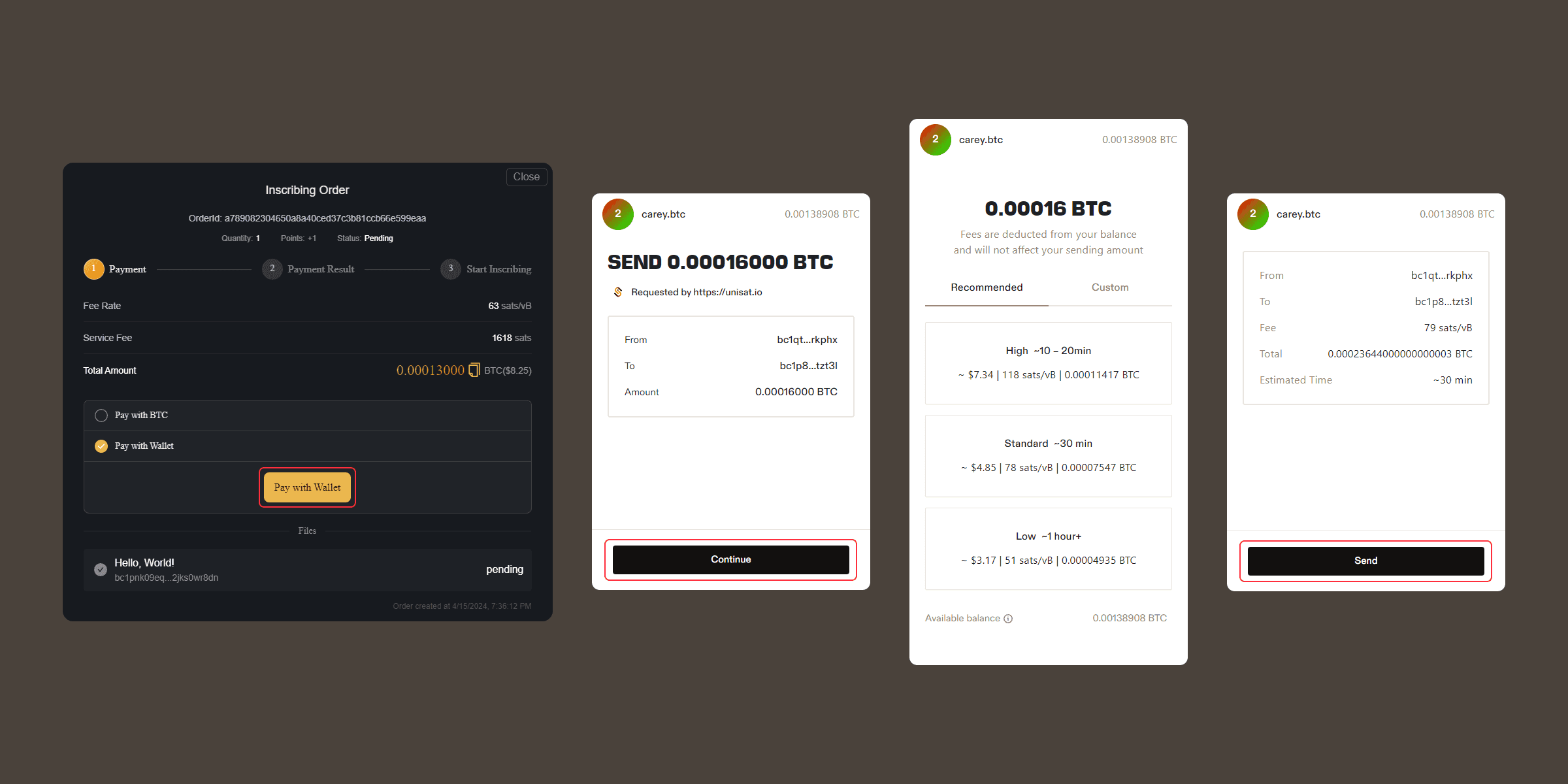
Click “Submit and Pay invoice” to complete your transaction
How to Buy Ordinals on UniSat with Leather
To buy inscriptions on UniSat:
-
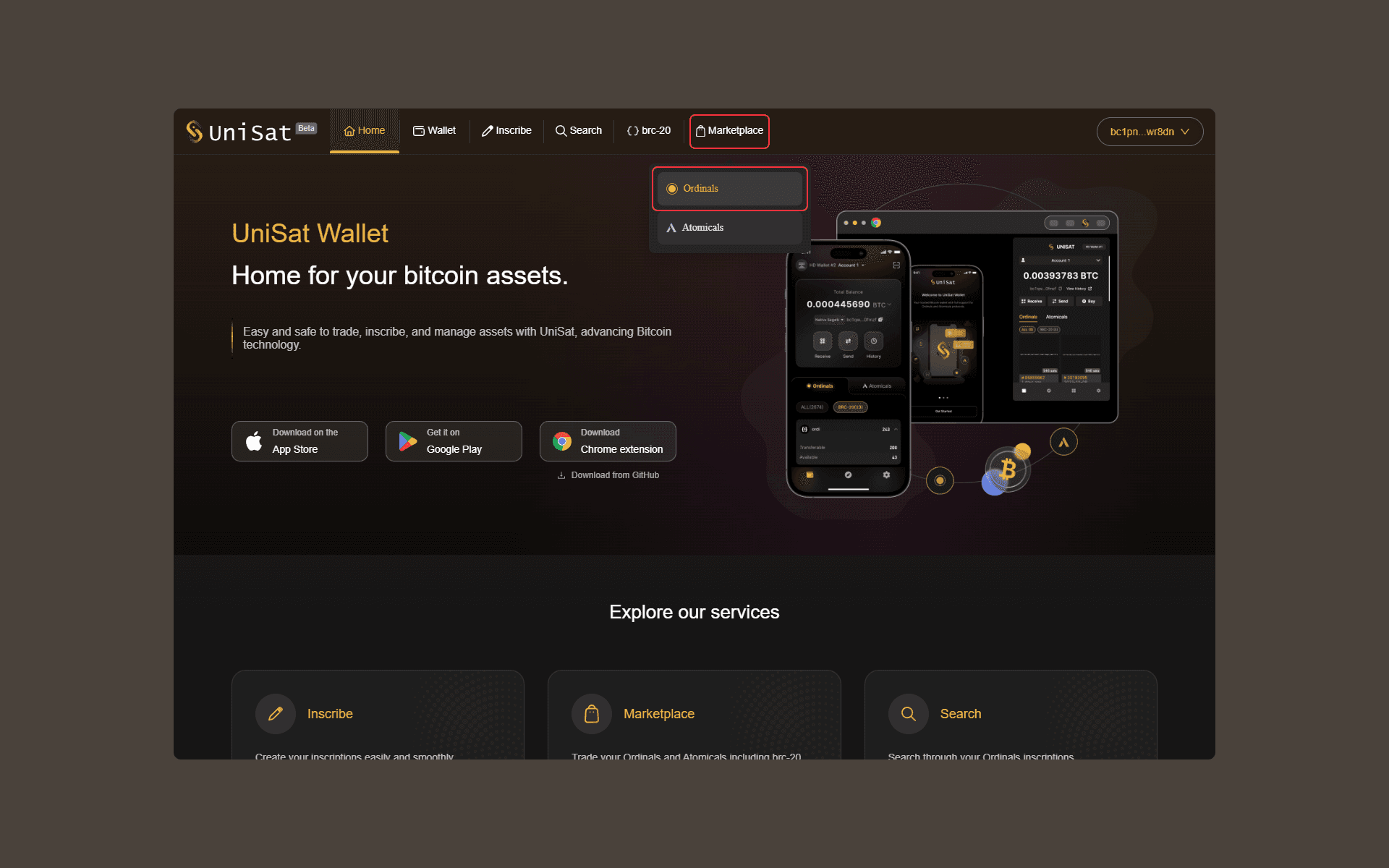
Hover over the “Marketplace” option in the UniSat site header and select “Ordinals” from the drop-down menu
-
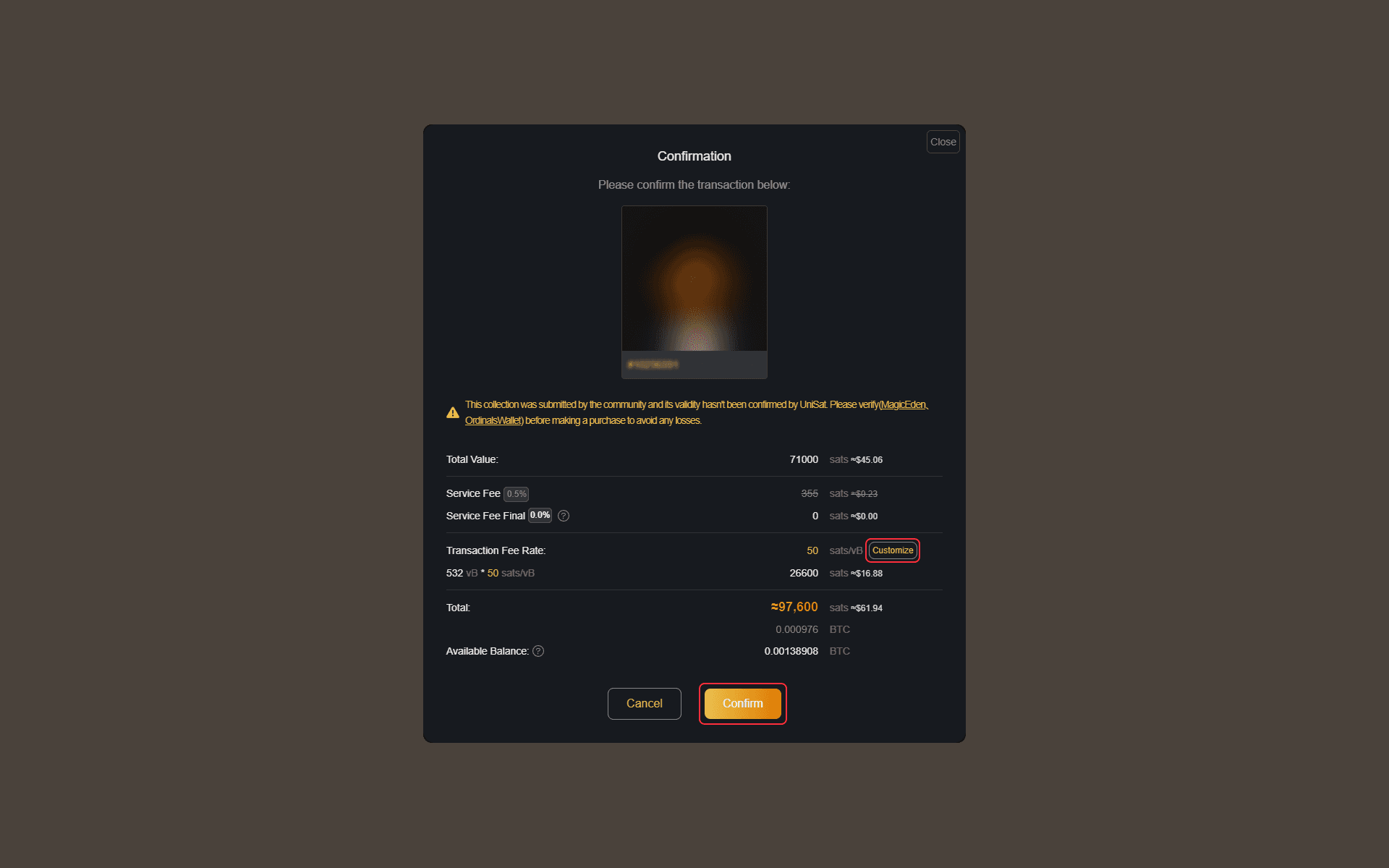
Click on “Buy” when you find the Ordinal you’d like to purchase and click on “Customize” to enter a fee option for your transaction
-
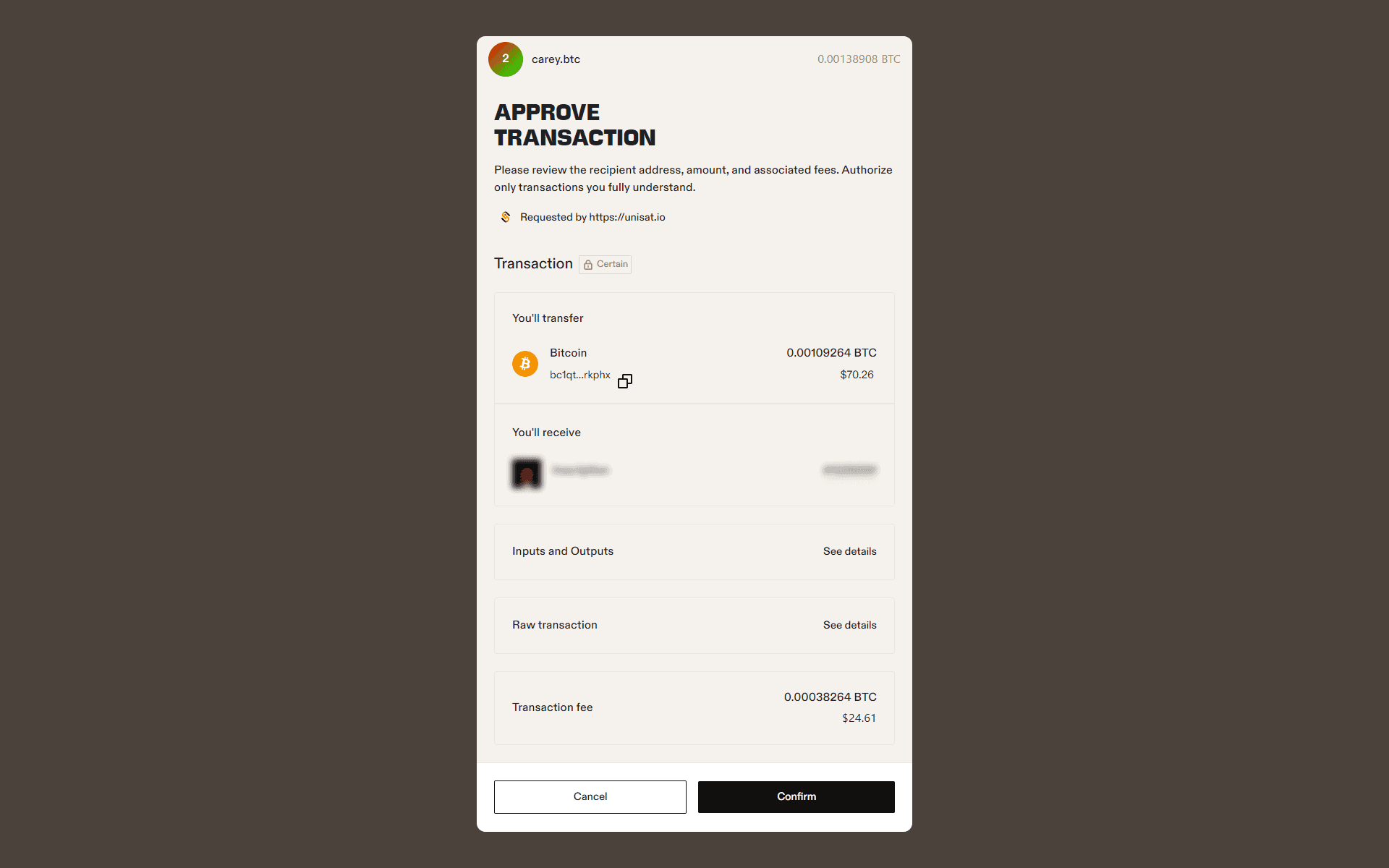
Hit “Confirm” to complete the transaction
How to Sell Ordinals on UniSat with Leather
To sell inscriptions on UniSat:
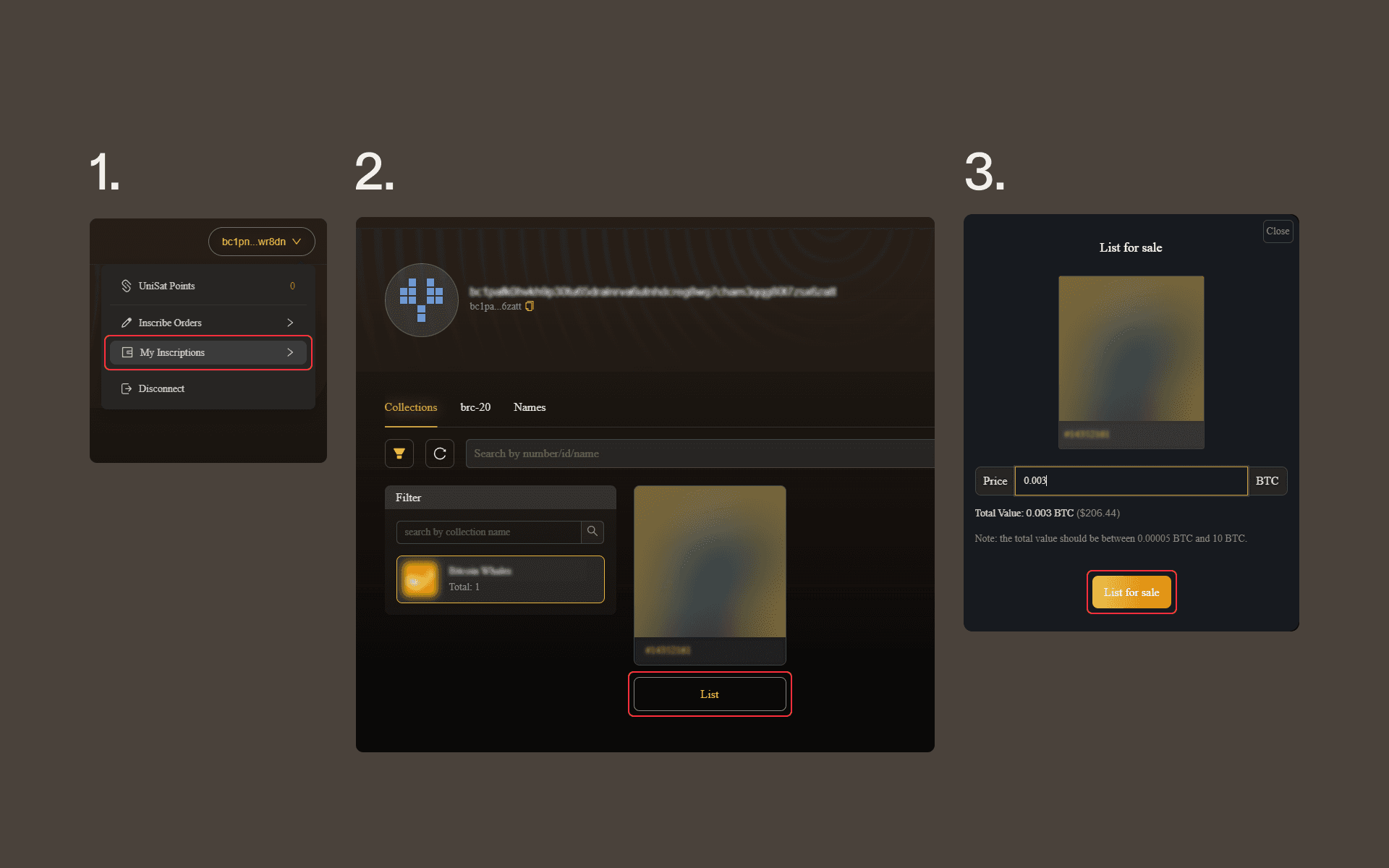
- Click on your wallet address located on the top right of the UniSat page and go to “My Inscriptions”
- Click the “List” button under the inscription you wish to sell
- Review your transaction details and click “Confirm” in the Leather pop-up window
You can also unlist inscriptions you want to keep by clicking the “Unlist” button and confirming the unlisting transaction (note that a transaction fee will be required to unlist your Ordinal)
How to Mint BRC-20 Tokens on UniSat with Leather
The process of minting BRC-20 tokens on UniSat mirrors that of other platforms. UniSat does, however, offer a 5-byte option.
To mint BRC-20 tokens on UniSat:
Deploy your BRC-20 token on UniSat
- Click the “Inscribe” option in the UniSat site header make sure the “BRC-20” tab is selected
- Make sure “Deploy” is selected
- Enter a ticker symbol for your BRC-20 token as well as the maximum number of tokens to be deployed and the limit per mint
- Double check the JSON text that appears to confirm your deploy details
- Read through the Risk Warning notice that pops up and click “Understood” if you choose to proceed with your transaction
- Provide the recipient’s address and select the fee option you’d like to proceed with your BRC-20 token deployment
- Check the “Pay with Wallet” box in the Inscribing Order window that appears and click “Pay with Wallet” to proceed
- Double check the payment details in the Leather pop-up window that appears and click “Continue”
- Select the fee option you’d like for your transaction
- Click “Send” to complete the deployment process for your BRC-20 token
Mint Your BRC-20 Token on UniSat with Leather
After deploying your BRC-20 token, you’ll need to mint the token to complete the process.
- Head back to “Inscribe” and make sure that the “BRC-20” tab is selected
- Select “Mint”
- Enter your BRC-20 token ticker, the amount you want to mint, and the repeat mint amount
- Double check the JSON text that appears to confirm your deploy details
- Read through the Risk Warning notice that pops up and click “Understood” if you choose to proceed with your transaction
- Provide the recipient’s address and select the fee option you’d like to proceed with your BRC-20 token deployment
- Check the “Pay with Wallet” box in the Inscribing Order window that appears and click “Pay with Wallet” to proceed
- Double check the payment details in the Leather pop-up window that appears and click “Continue”
- Select the fee option you’d like for your transaction
- Click “Send” to complete the mint process for your BRC-20 token
How to Buy BRC-20 Tokens on UniSat with Leather
To buy BRC-20 tokens on UniSat with Leather:
- Head to the “Marketplace” section and click on the “BRC-20” drop-down menu
- Search for a specific BRC-20 token or browse the available token offerings
- Select the BRC-20 transfer inscription that you want to purchase and click “Buy” (the numbers denote the amount of tokens in each inscription)
- Confirm the network fee you want to pay to complete your transaction and continue
- Review the transaction details in the Leather pop-up window and confirm the transaction
How to Sell BRC-20 Tokens on UniSat with Leather
To sell BRC-20 tokens on UniSat with Leather:
- Click on the “My Assets” drop-down located just above BRC-20 token listings to the right and select which BRC-20 token you want to “List”
- Click on the “Inscribe TRANSFER” box
- Make sure that the “Transfer” option has been selected for you and enter the amount of tokens you wish to transfer
- Double check the JSON text that appears detailing your transfer information
- Read through the Risk Warning notice that pops up and click “Understood” if you choose to proceed with your transaction
- Provide the recipient’s address and select the fee option you’d like to proceed with your BRC-20 token deployment
- Check the “Pay with Wallet” box in the Inscribing Order window that appears and click “Pay with Wallet” to proceed
- Double check the payment details in the Leather pop-up window that appears and click “Continue”
- Select the fee option you’d like for your transaction
- Click “Send” to complete the transfer process for your BRC-20 token